---
title: Search for events
description: Use search terms, dates and places to find suitable events.
sidebar:
order: 1
---
Open **Events** on [kulturbytes](https://kulturbytes.de/en) and choose **Search**.
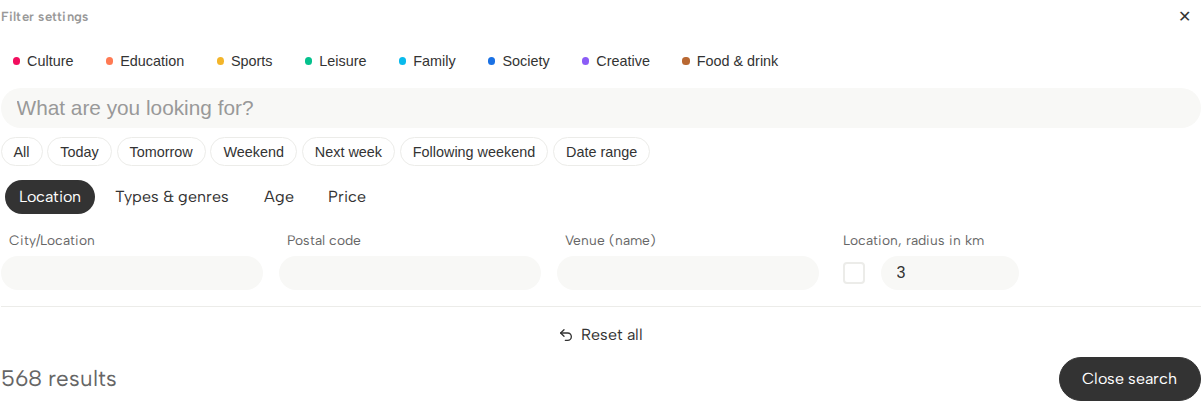
The search on a large screen. Start with a search term, a time period or a place.
## Enter a search term [#search-term]
Enter a word that describes what you are looking for, such as **jazz**, **theatre** or the name of an event. Start with a short term. You can make your search more precise afterwards.
## Choose a time period [#time-period]
Choose a time period, such as **Today**, **Tomorrow** or **Weekend**. To search between two dates, choose **Date range** and enter the start and end dates.
## Choose a place [#place]
Under **Location**, enter a town, postal code or venue name. For example, use the town to find events in Flensburg, or a venue name to look for events at a particular cultural centre.
For a search near your current location, enable the location option and enter a radius in kilometres. Your browser may ask to use your location. If you do not want to allow this, enter a town or postal code instead.
## Narrow down your selection [#filters]
**Filters** are options that limit which results you see. Alongside the search term, time period and place, you can use:
* **Categories**, such as culture, education or family.
* **Types & genres**: for example, concert and jazz. A genre describes a more specific style.
* **Age**, if you are looking for an offer for a particular age group.
* **Price**, for example free admission or a maximum price.
Use only the options you need. Each extra condition can make the result list smaller.
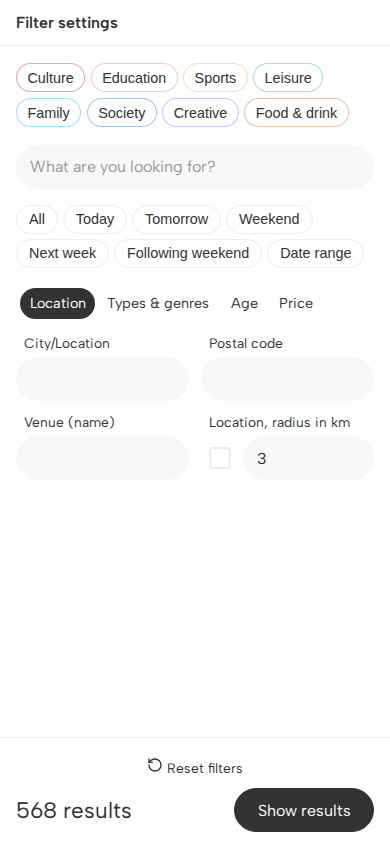
On a phone, choose **Show results** when you have finished selecting. On a large screen, the results update as you change the options; close the search to see more of the list.
On a phone, choose Show results at the bottom to apply your selection.
## Change or remove filters [#change-filters]
Your selected options appear above the results under **Active filters**. Choose the **×** beside an option to remove it. Choose **Reset all** to start again. On a phone, this button is called **Reset filters**.
## Open an event [#event-details]
Open an event that interests you. Check the date, start time, venue and any information about tickets or registration. An event may have several dates. Make sure you choose the date you want.
If you cannot find a suitable event, try the [search tips](/en/discover/tips).